Searching Announcements
Quickly find announcements across your council by searching keywords in announcement subjects, email bodies, SMS text, and creator names. Search results display matched content with visual highlighting.
Accessing the Search Page
Navigate to the Announcements Overview page, then click the Search button in the Announcements Actions card.
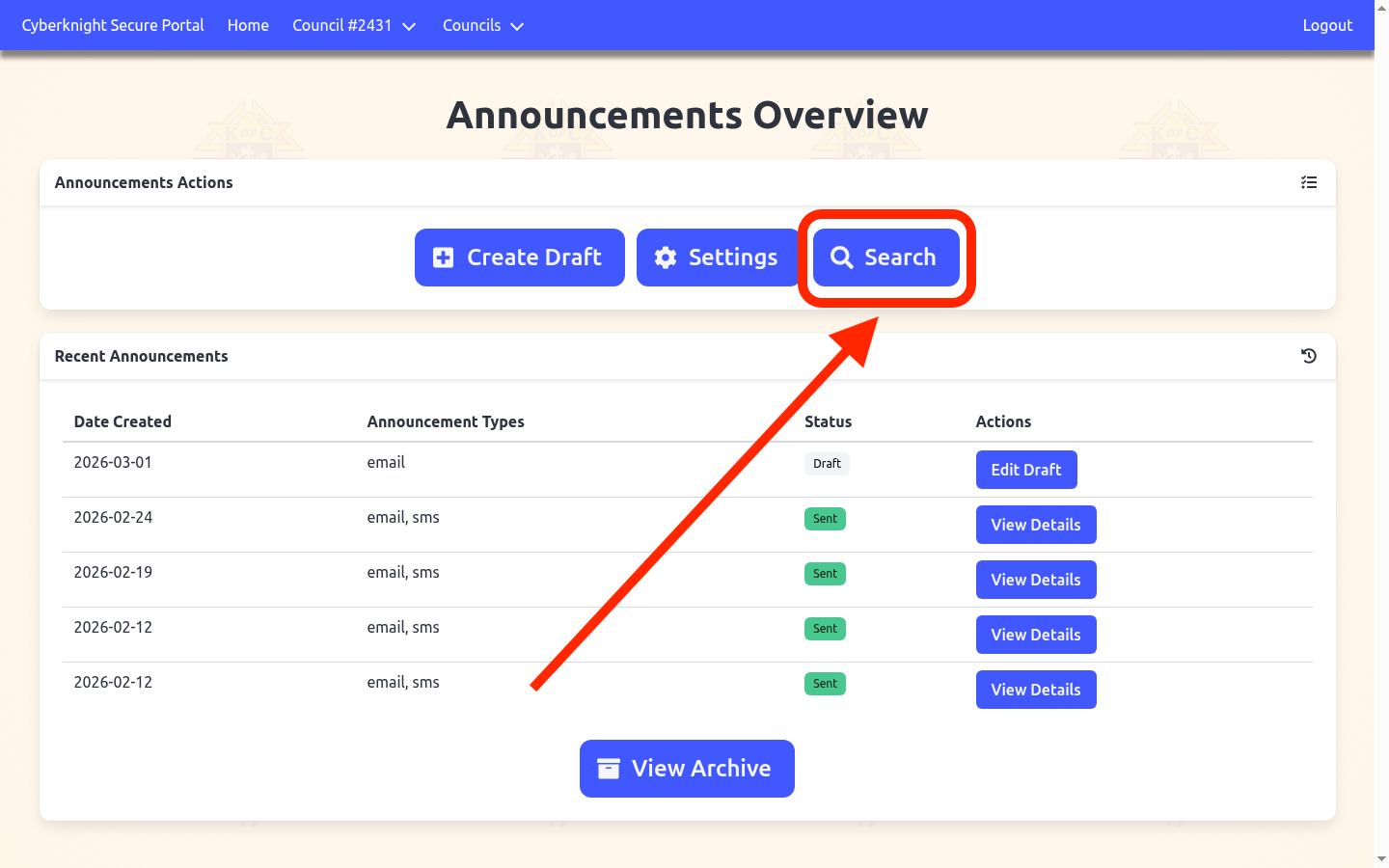
Searching for Announcements
Enter a search term into the search field and click Search. Results will display all announcements matching your query across multiple fields.
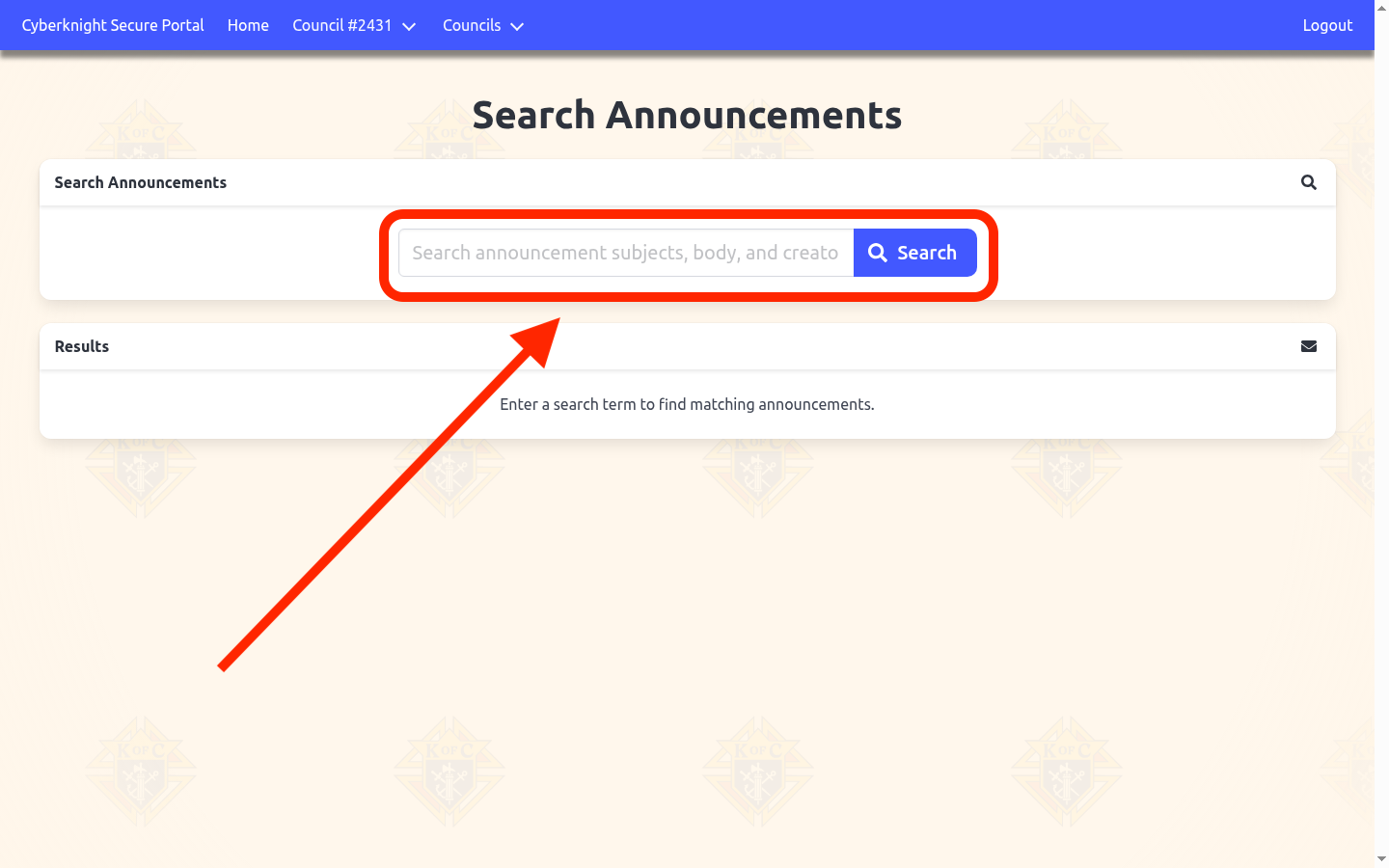
Viewing Search Results
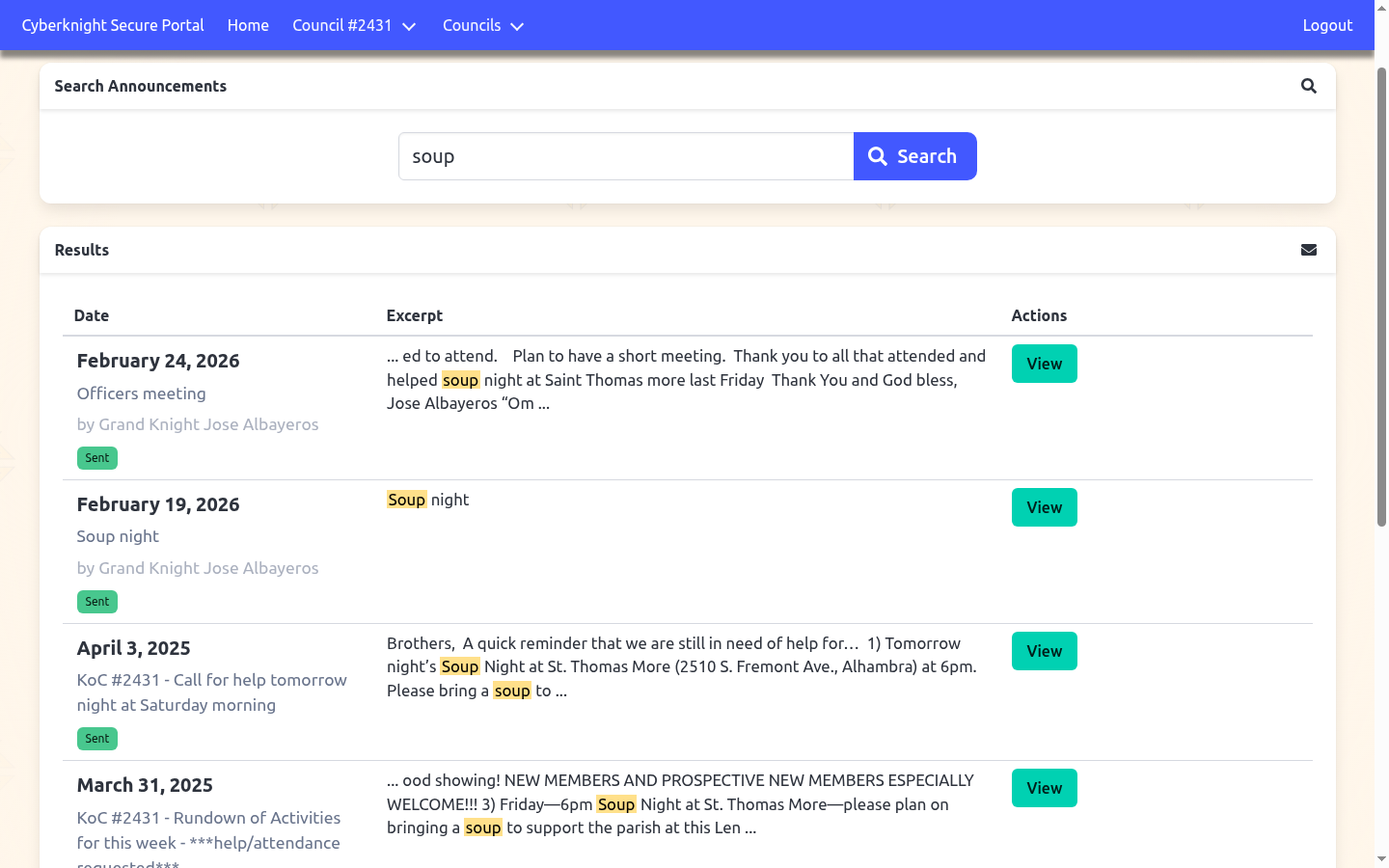
Search results are displayed in a table showing the creation date, a highlighted excerpt of the matching content, and announcement status. Click the View button to open the full announcement details.
Tips
- Search multiple fields - Queries search announcement subjects, email bodies, SMS content, and creator names simultaneously
- Case-insensitive - Search is case-insensitive, so “Soup”, “SOUP”, and “soup” all return the same results
- Partial matches - Search finds partial word matches, so searching “event” will find “events”, “prevention”, etc.
- Highlighted text - Matched keywords are highlighted in yellow in the excerpt for easy identification
- Status indicators - Status badges (Draft, Sent, Processing, Scheduled) show the current state of each announcement