Uploading Meeting Minutes
Upload your council’s meeting minutes as PDF files to keep them organized and make them searchable through transcriptions.
Uploading a PDF
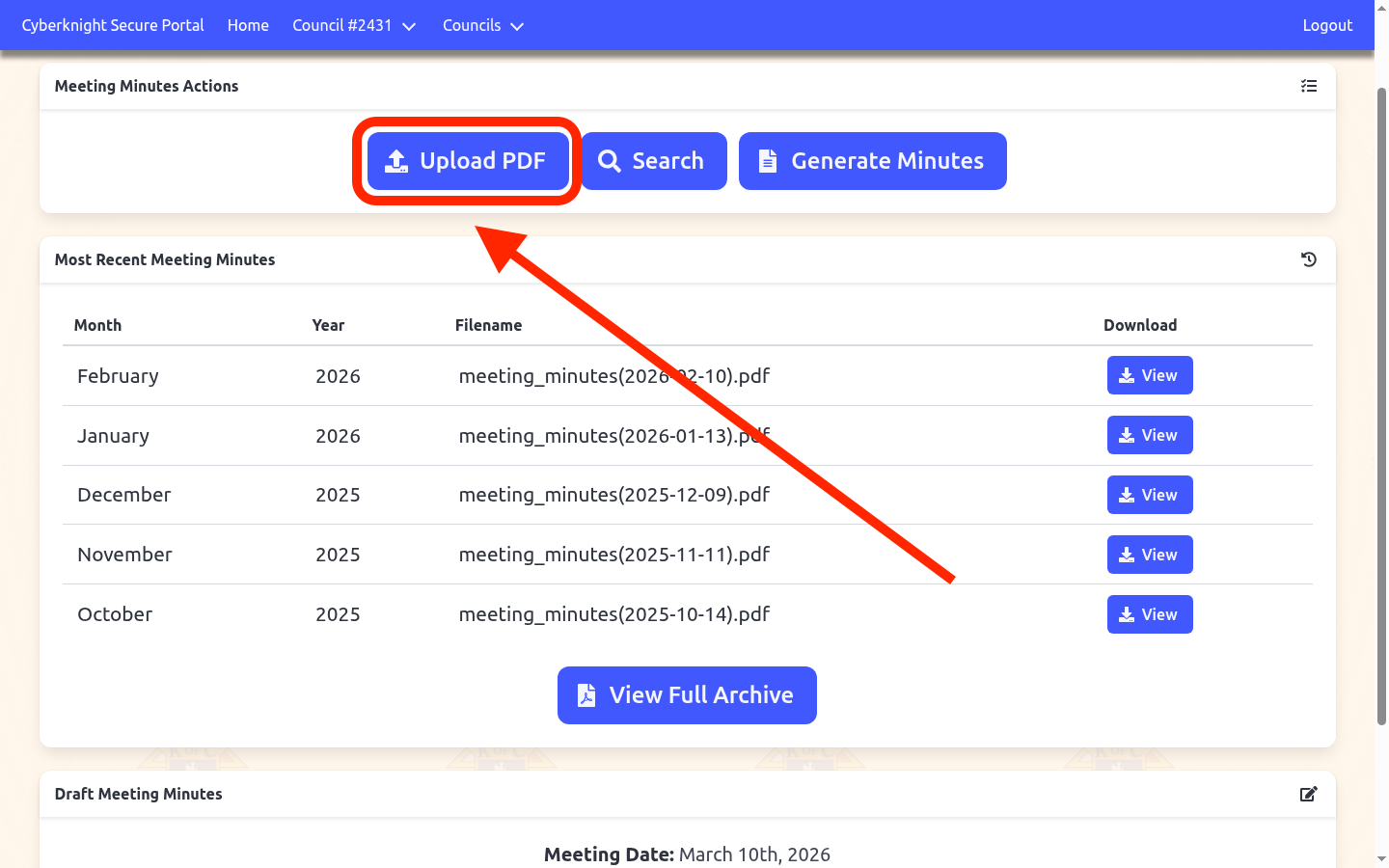
Step 1: Navigate to the Meeting Minutes page
From your council dashboard, click Meeting Minutes in the navigation menu, then select Upload PDF. You can also reach the upload page directly from the Meeting Minutes Overview screen.
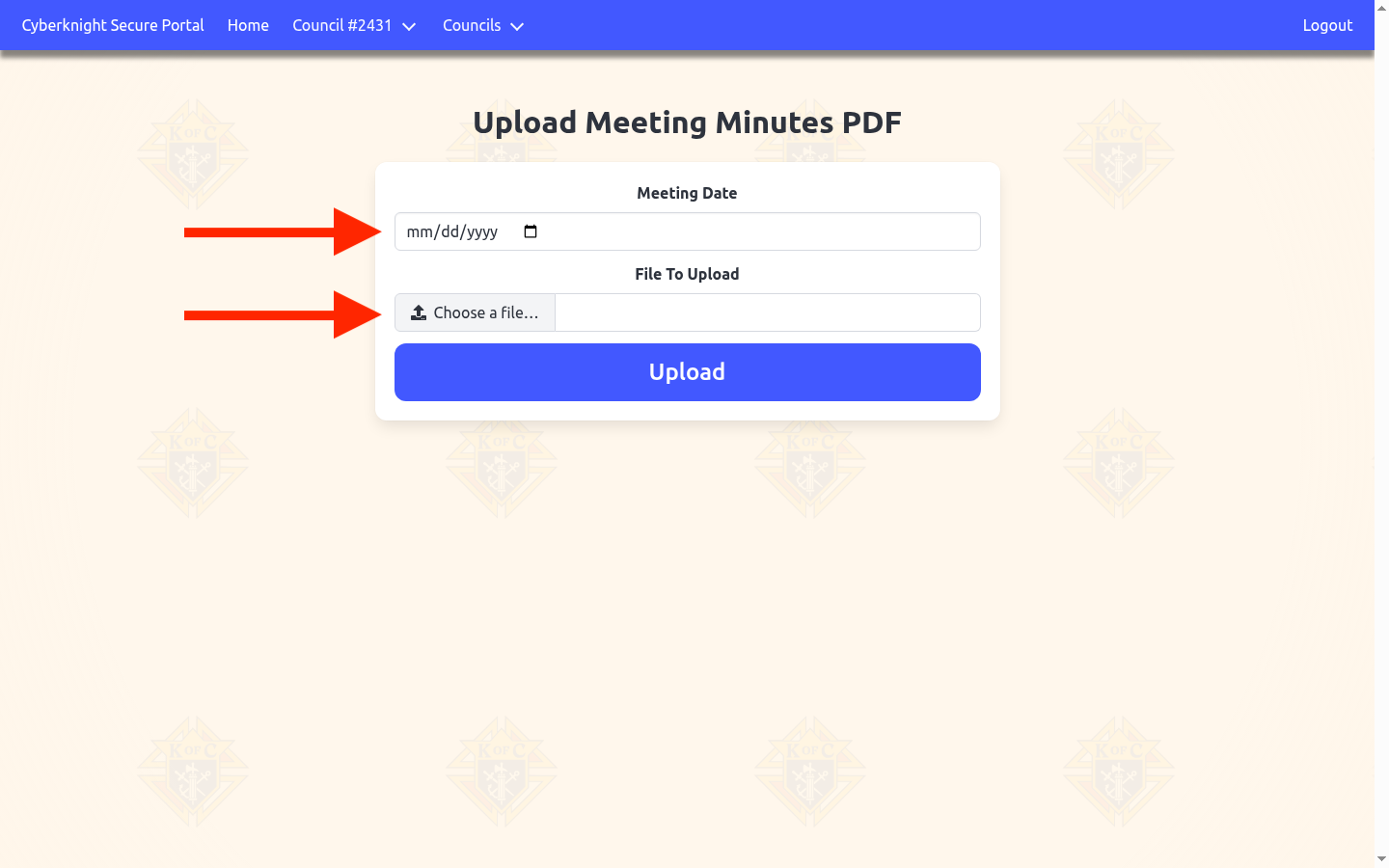
Step 2: Choose a meeting date and file
On the upload page, select the date of the meeting using the date picker. Then click Choose a file and select the PDF meeting minutes file from your computer. Only PDF files are accepted.
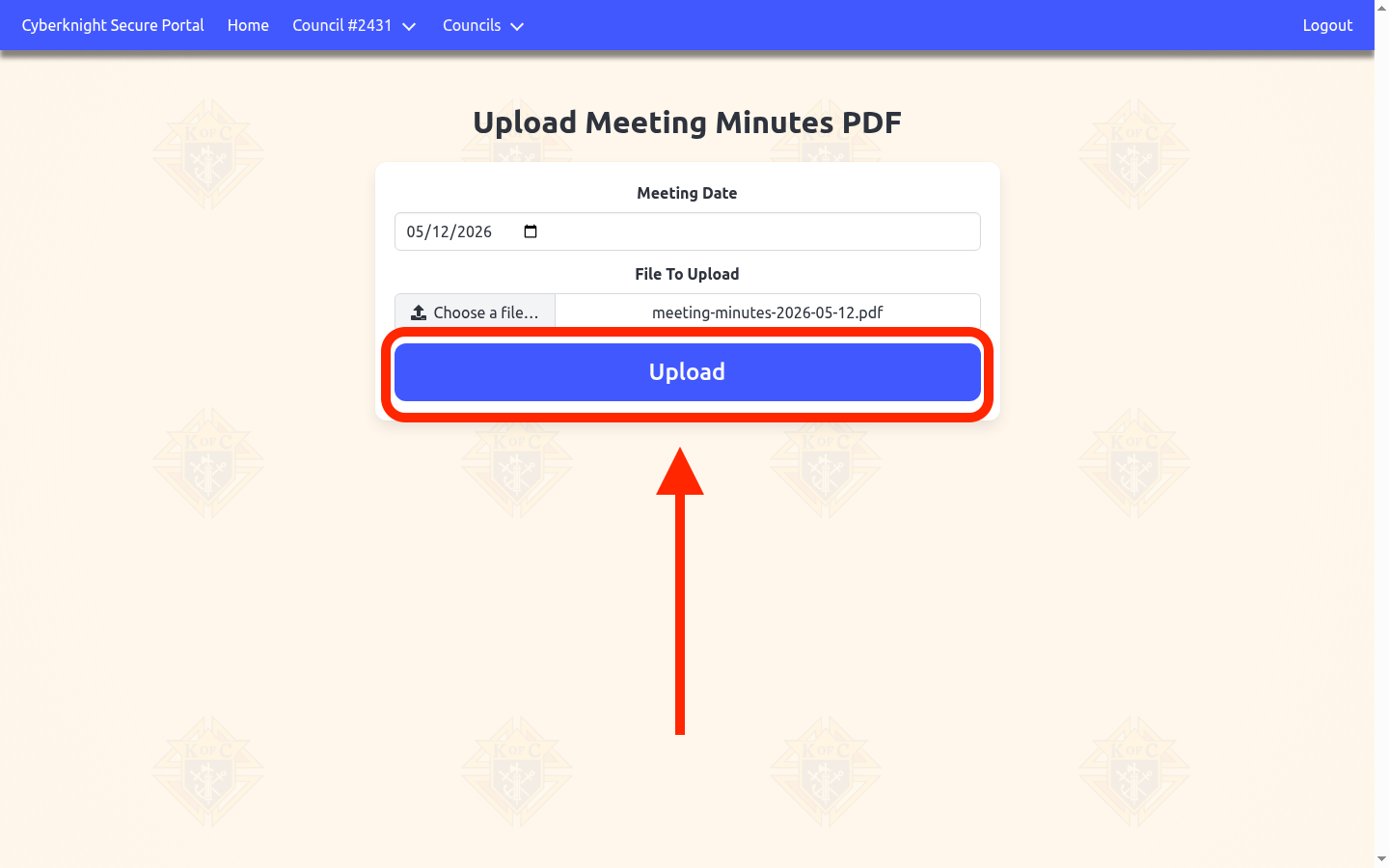
Step 3: Upload the file
Click the Upload button. Once uploaded, your minutes will appear on the Meeting Minutes Overview page in the Recent Meeting Minutes table.
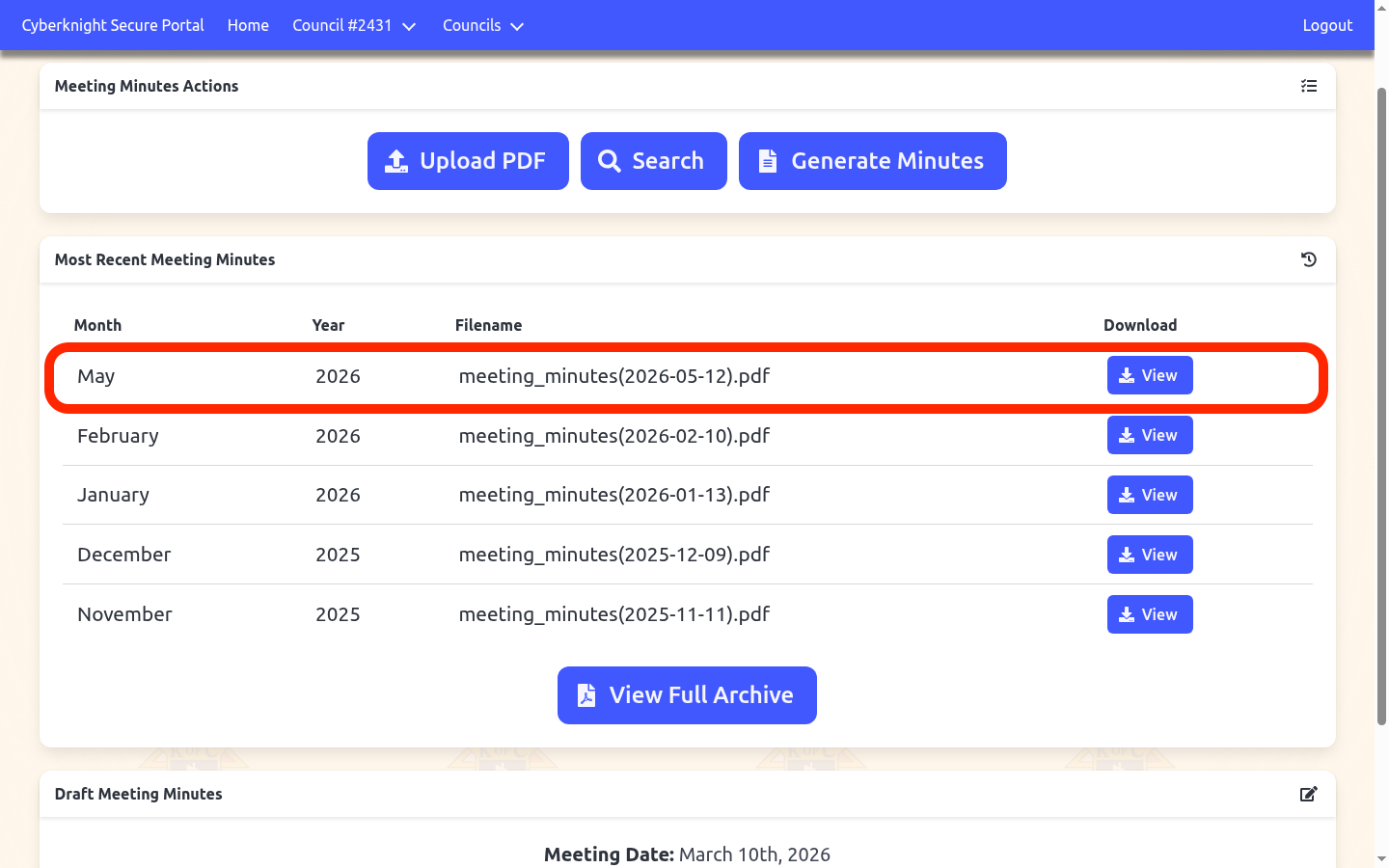
Viewing Uploaded Minutes
Uploaded PDFs appear in the Recent Meeting Minutes section on the overview page. Click View to open the PDF directly in your browser. For access to the full historical record, click View Full Archive for a complete listing of all uploaded minutes by year and month.
Tips
- File type — Only PDF files can be uploaded. If your minutes are in another format, convert them to PDF first.
- Transcription — After uploading, the system automatically generates a searchable transcription from the PDF. This may take a few minutes to process in the background.
- Search — Use the Search button on the overview page to search for keywords across all your meeting minutes.